
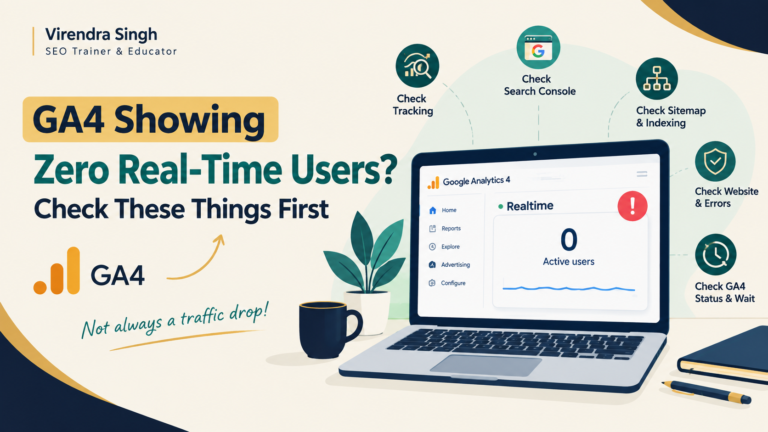
Seeing zero users in Google Analytics 4 (GA4) Realtime can be alarming, especially if your website normally receives regular traffic. However, zero real-time users does not always mean your website has suddenly lost all its traffic.
The problem could be related to GA4 tracking, reporting delays, website accessibility, indexing, or an actual traffic drop. Before assuming the worst, it is important to check a few things step by step.
1. Check Whether the GA4 Tracking Code Is Working Properly
Start with the most obvious check: is your GA4 tracking code still firing correctly?
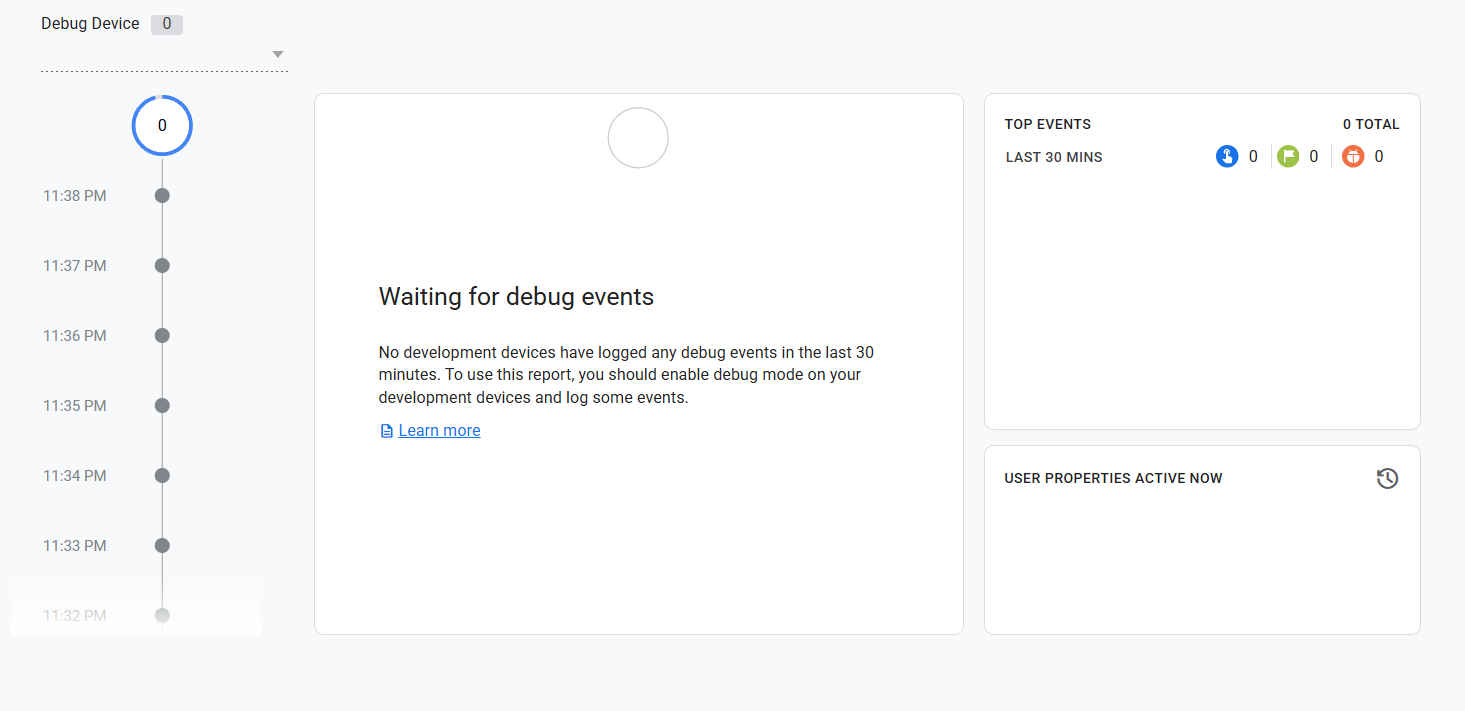
Recent changes to your website, Google Tag Manager (GTM), theme, plugins, consent banner, or website code can sometimes affect tracking. Visit your website yourself and check whether your session appears in GA4 Realtime.
If your own visit is not being tracked, the issue may be related to the tracking implementation rather than an actual traffic drop.
2. Check Whether Your Sitemap Is Being Updated
Your XML sitemap helps search engines discover important URLs on your website.
Check whether your sitemap is updating properly, especially if you regularly publish new content or news articles. Make sure recent URLs are appearing in the sitemap and that there are no major errors preventing search engines from accessing it.
A sitemap issue may not directly cause GA4 Realtime to show zero users, but it can help identify whether there is a broader technical or indexing problem.

3. Check Google Search Console for Impressions and Clicks
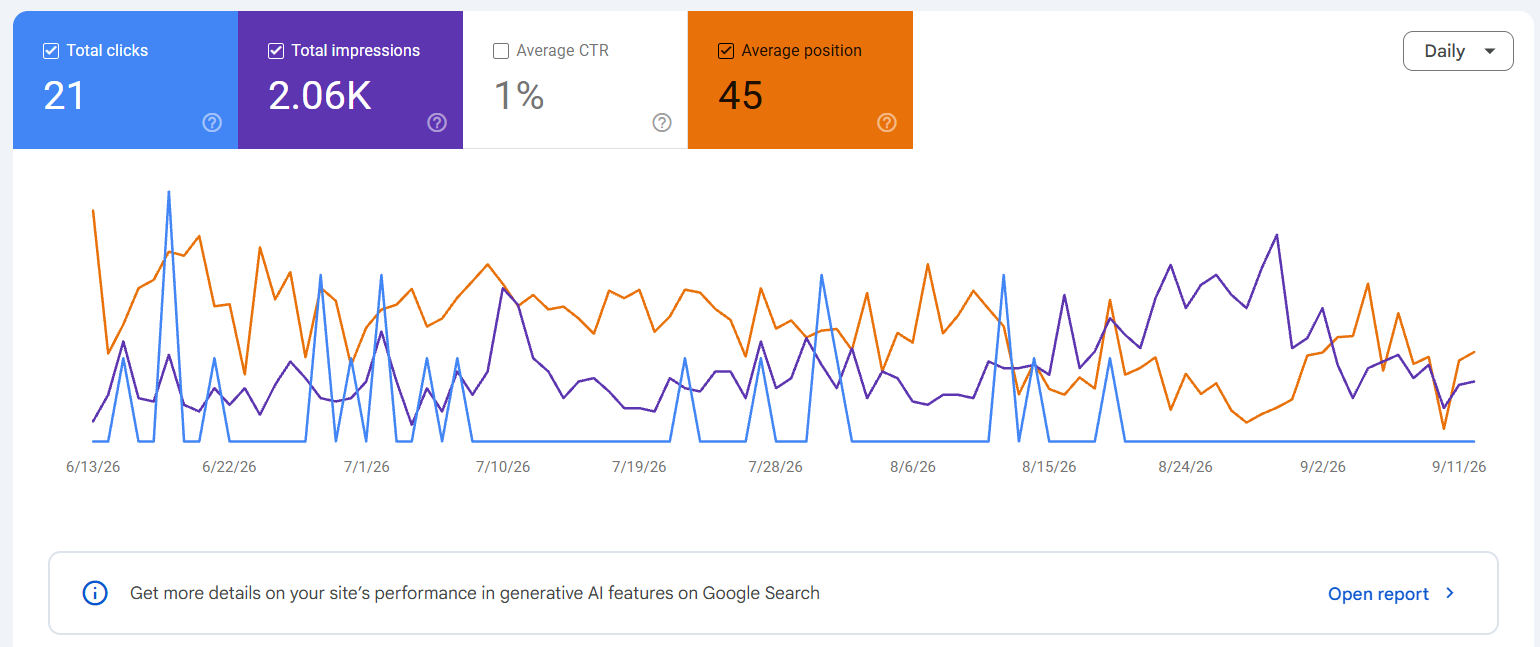
One of the quickest ways to understand whether your website is still performing in Google Search is to check Google Search Console (GSC).
Look at your recent impressions and clicks. If impressions and clicks are relatively normal, it generally indicates that your website is still being discovered and receiving visibility in Google Search.
This is an important distinction: if Search Console data looks normal but GA4 Realtime suddenly shows zero, the problem may be with tracking or reporting rather than search visibility.
Compare the latest data with your usual traffic patterns instead of looking at one number in isolation.
4. Check for Manual Actions or Security Issues
Go to the Manual Actions and Security Issues sections in Google Search Console.
A manual action or security issue can affect your website’s visibility and, in some cases, lead to a significant traffic decline. If there are no issues reported, you can rule out one possible reason for a sudden drop in organic traffic.
This should be part of every basic investigation when website traffic unexpectedly changes.
5. Check Whether GA4 Is Facing a Tracking or Reporting Issue
Sometimes the problem is not with your website at all.
GA4 may experience temporary tracking, reporting, processing, or Realtime reporting issues. Before making major changes to your website, check whether the issue is limited to the Realtime report or whether you are also seeing unusual changes in your overall traffic reports.
You can also test the website from another device or browser and see whether a new visit is being recorded.
If normal traffic data is available elsewhere but Realtime continues to show zero, avoid immediately assuming that your website traffic has disappeared.
6. Check Whether Your Website Is Accessible
Make sure your website is actually accessible to users and search engines.
Open the homepage and a few recent URLs. Check whether they are loading properly or returning errors such as 404, 500, or other server errors.
Also consider recent deployments, hosting problems, CDN issues, DNS changes, or technical changes that may have affected website availability.
If users cannot access your website properly, a genuine traffic drop is possible.
7. Use the site: Operator to Check Indexing
You can perform a quick indexing check by searching:
site:yourdomain.com
You can also search for specific URLs or page titles using the site: operator.
This should be treated as a quick diagnostic check rather than a complete indexing report. Google Search Console remains the better source for detailed indexing information.
If your important pages are still appearing in Google Search and GSC data looks normal, that is another signal that the issue may not be a complete loss of search visibility.
8. Check Community Discussions Before Assuming the Worst
If your tracking code, website accessibility, indexing, and Search Console performance all appear normal, check whether other users are reporting similar GA4 issues.
Look at relevant community discussions and official channels to see whether others are experiencing Realtime reporting or tracking problems.
If the evidence suggests a reporting issue, you may need to wait 24–48 hours and then review both Realtime reporting and overall traffic again.
The Key Takeaway
GA4 showing zero Realtime users does not automatically mean your website has zero traffic.
First, determine whether you are dealing with a tracking or reporting issue or a genuine traffic drop. Check GA4 implementation, Google Search Console, indexing, website accessibility, and recent technical changes before making major conclusions.
A structured investigation can help you identify the real issue faster and prevent unnecessary SEO or technical changes based on incomplete data.
Also Read: 9 Common Reasons Why Google Analytics Isn’t Tracking Your Data